Teams and field coverage
Stop asking the group text who is near Prineville
A buyer wants to see a house in forty minutes and you are across the county. Somebody on your team is probably five minutes from the door. Finding out which one usually costs three texts and a phone call. A team in About Time Tours answers it on a map: who is working, where they are, and how far that is from you.
$20 per agent per month after a 30-day free trial; $5 per agent per month for organizations of 51 to 1,000 agents; larger by agreement.
- Two roles, not a matrix
- Owner and Member. There is no third role to configure.
- Sharing is per team
- The switch lives on your membership, so one team can see you and another cannot.
- Only while on duty
- Go off duty and you come off the map. Nothing is shared in the background after that.
Making a team takes one field
Agent Teams sits on the dashboard’s Quick links. Creating one asks for a name and nothing else: the placeholder suggests something like “Downtown Office”. You become the Owner, your own membership is created with location sharing already on, and the team is ready to invite into.
You can be on several
Teams run across the top as chips with a member count, your office team, a partnership, a weekend duty rota. Pick one and the roster and map switch to it.
Membership is not brokerage
A team is its own list. Your brokerage puts colleagues first on the invite screen, but you can invite an agent from another firm, and leave later.
Deleting is explicit
Only the Owner can delete a team, and the confirmation names it. Members who want out use Leave, which removes only their row.
Invite, accept, decline
Nobody is added to a team without agreeing to it. An invitation has three states (pending, accepted, declined) and a membership only exists after the other agent taps the check.
If they already use the app
The invite sheet opens empty, prompting you to “Type a name or email to find an agent”. Two characters is the shortest search it will run, and it searches by name or email across the platform; results from your own brokerage sort to the top and are flagged as yours.
Every result carries its current state on the right, so the screen tells you what has already happened before you tap anything:
- Member
- Already on this team. The row shows a flat badge instead of a button, so you cannot double-invite.
- Pending
- An invitation is already out to that agent and has not been answered.
- Invite
- Nothing has been sent yet. One tap sends it.
If they do not
“Don’t see them? Invite by email” takes an email address and an optional name and sends the invitation out. The backend refuses a second pending invitation for the same team and the same address, and it checks that the account making the request really is the agent named as the inviter. An invite cannot be sent in someone else’s name.
Until it is answered, the invitation sits on the roster reading Email sent, pending for an email invite or Invited, pending for someone already on the platform. The Owner can cancel either one.
What the invitee sees
An Invitations block at the top of their own Agent Teams screen, showing the team name and who sent it, with a check and an X. Accepting creates their membership as a Member with location sharing on. Declining records the decline and does nothing else: no team, no sharing, no follow-up.
The whole permission model
Two roles. The Owner is whoever created the team; everyone who accepts an invitation is a Member. There are no custom roles, no per-feature toggles, and nothing to audit later.
Owner
- Invite agents to the team, by search or by email address
- Cancel a pending invitation before it is accepted
- Remove a member from the team
- Mark an on-duty member off duty from the roster
- Delete the team, which removes every member with it
Member
- Turn their own duty status on and off
- Turn their own location sharing on and off, per team
- See the roster, the map, and how far away each on-duty teammate is
- Call a teammate when their profile carries a phone number
- Open the app in a teammate’s view to see the work from their side
- Leave the team
On duty is a switch you throw, not a setting you forget
Your own row on the roster carries two chips. One is your duty status. The other is location sharing for that team, and it is disabled until you are on duty. Sharing a position you are not broadcasting would be meaningless, so the app will not let you set it up that way.
Going on duty on the phone
Grant foreground and background location and a background task reports your position at most every thirty seconds, and only after about fifty metres of movement. Decline and it records a single position instead.
Going on duty in a browser
One reading immediately, then a heartbeat about once a minute, only while the tab is open and visible. Close the tab and the app makes a best-effort attempt to take you off duty.
Going off duty
Tracking stops and your duty flag clears. You stay on the roster but your marker leaves the map, and an Owner can mark you off duty too.
The on-duty banner
While on duty a coloured bar sits above the tab bar and in the tour controls, green for On Duty, amber for Location Paused , carrying Pause/Resume and Stop, so ending the day never means hunting through Settings.
The browser gets the same bar and the same two controls. This is not an app-only surface.
Pause is different from stop
Pause keeps you on duty but stops sending positions, the lunch break, the detour you would rather not broadcast. Teammates see an amber ring and a last-known time. Resume picks it back up; Stop takes you off duty.
Who shows up on the map, and why
Three conditions have to hold at once before a teammate appears as a marker. Miss any one and they stay on the roster but off the map, which is the honest answer rather than a stale pin.
The three conditions
- They are on duty. Off duty means no marker, no exceptions.
- Sharing is on for this team. The flag lives on the membership, so an agent can be visible to their office team and invisible to another team at the same moment.
- A position exists. Somebody who just went on duty and has not reported yet has nothing to draw.
When nobody qualifies, the map says so with a No members on duty pill instead of leaving you guessing whether it is broken.
What the screen tells you
- A ring colour per person. Green for live, amber for paused, grey for off duty, on both the map marker and the roster avatar, which is their headshot when they have uploaded one and their initials when they have not.
- Distance from you. Under a mile it reads in feet, over a mile in miles to one decimal. That is the number you actually want when a showing needs covering in forty minutes.
- Freshness, stated. Marker callouts read “Updated 4m ago” rather than implying the pin is current.
- Tap to centre. Tapping a teammate in the roster animates the map to them and highlights their row; tapping the map clears it.
How the positions arrive
The screen subscribes to location updates for the members of the team you are looking at, so a marker moves when a teammate moves rather than when you pull to refresh. A sixty-second reload runs underneath it as a backstop for a dropped subscription, and pull-to-refresh is there when you want to force it. On a tablet or a desktop browser the roster sits in a panel over a full-bleed map; on a phone it is a drawer you pull up from the bottom.
Starting a tour asks first
The moment you are about to be in the field is the moment the question is worth asking, so that is when it gets asked. Tap Start on a tour and, if you are not already on duty, the app checks which teams you belong to before it opens the tour.
No teams
Nothing is asked. The tour opens.
One team
A sheet naming that team asks whether to share your location during this tour. Share location, or Don’t share.
More than one team
A picker lists every team with a checkbox, plus an All Teams box at the top. Everything starts ticked, so the fast path is one tap, but untick the ones that do not need to see this particular afternoon.
Already on duty
No prompt at all. You answered this when you went on duty.
Confirming turns on duty and writes your choice to each membership (ticked teams on, unticked teams off), then opens the tour. Declining opens the tour and leaves you off duty. If the device refuses location permission, tracking never starts and the tour opens with you off duty regardless of what you picked. Either way you land on the same screen; the only difference is who can see you on it.
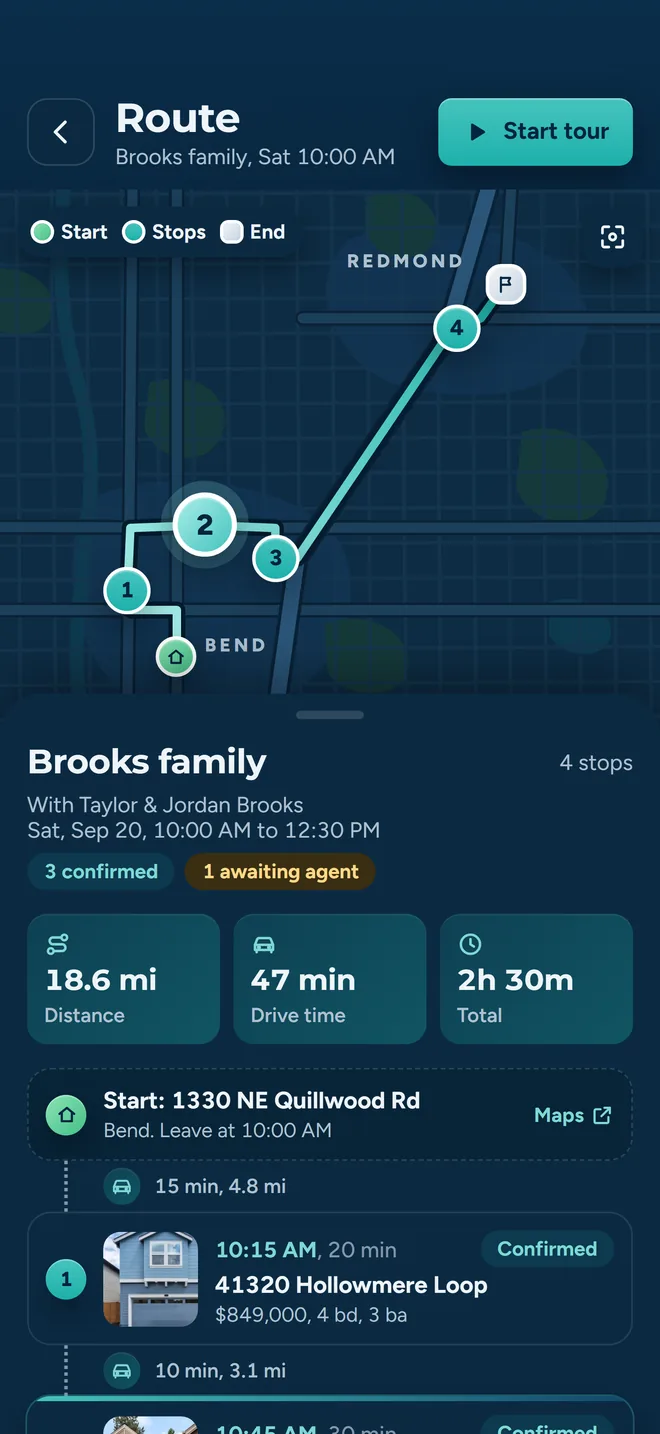
A tour and its stops. Tapping Start on this tour is the moment the share-location prompt appears.
What the app does that the browser cannot
Teams are built once and run on iPhone, Android and the browser. Creating a team, inviting and accepting, the roster, the map, the distances, the duty and sharing toggles, the on-duty banner and the share-location prompt all behave the same in either place. One thing does not, and it is a platform limit rather than a paywall.
Position keeps updating in the background
- iPhone and Android app
- Yes. A background task keeps reporting while you drive.
- Browser
- No. The browser heartbeat only runs while the tab is open and visible.
On Android, background sharing shows the persistent notification the operating system requires, reading that About Time Tours is sharing your location with your team. You are never tracked quietly.
What we are not claiming
You are about to ask colleagues to share their location with you. You should know the edges of this before you make that ask.
- No time-saved number
- We have no measured figure for how much driving or coordination a team saves, so we are not going to invent one. Run a week of coverage with your own people and judge it on that.
- Coverage is Central and Southern Oregon, plus Southeast Florida
- Property search runs on Oregon Data Share members and the MIAMI Association of REALTORS feed, from a cache refreshed every fifteen minutes rather than a live MLS query. Teams are only as useful as the market you are working in.
- Sharing is opt-in and reversible
- Nothing is shared while a member is off duty, and each member controls their own switch per team. An Owner can mark someone off duty, but cannot turn another agent's sharing on.
- What a team costs
- $20 per agent per month after a 30-day free trial; $5 per agent per month for organizations of 51 to 1,000 agents; larger by agreement. A rollout is quoted against your roster, so talk to us before you plan one.
Rolling this out to a brokerage
Teams in the app are built for a handful of agents who cover for each other. If you are looking at office-wide or firm-wide deployment, that is a conversation rather than a signup form. Take it to the brokerage page.
Where this fits with the rest
Tour planning
Building the day the team is out running: stops, order, drive time and buffers.
Read moreShowing confirmations
Getting each listing agent to confirm, decline or propose a new time on one link.
Read morePlan and run a tour
The whole walkthrough, from picking properties to finishing the last stop.
Read morePut your coverage on one map
Guided setup is open to agents working Southeast Florida and our supported Oregon markets. Make a team, invite the two people you already call when you are stuck, and see whether the map answers the question faster than the group text does.
Already set up? Get the app on the App Store or Google Play.