Teams and field coverage
The feature in full: what each role can do, what is shared, and how the same surfaces behave on phone versus browser.
Walkthrough
A buyer wants a house shown in forty minutes and you are two towns away. Somebody in your office is probably close enough. Working out which one normally costs a group text, three replies and a phone call.
A team in About Time Tours turns that into a map. This is how you set one up, what each control actually writes, and where the honest edges are: location sharing is a phone permission, not a promise, and it behaves differently in a browser.
Listing search covers Central and Southern Oregon plus Southeast Florida today.$20 per agent per month after a 30-day free trial; $5 per agent per month for organizations of 51 to 1,000 agents; larger by agreement.
A team is a name and a roster. There is no second setup screen, no settings page behind it, and nothing to configure before you can invite anybody.
Make as many as the work needs. An agent can own one team, belong to three others, and share location with only the ones that matter.
Five things nobody else on the team can do: invite people, cancel an invitation before it is answered, remove a member, clear a member's on-duty flag, and delete the team. Everything else (going on duty, sharing location, reading the map, opening a teammate's view), every member can do, including you.
Whoever creates the team is its owner for the life of the team. There is no hand-over control and no second owner, so if the person who set it up moves brokerage, the practical fix is a new team. Worth thirty seconds of thought before a managing broker creates the office-wide one under a personal account.
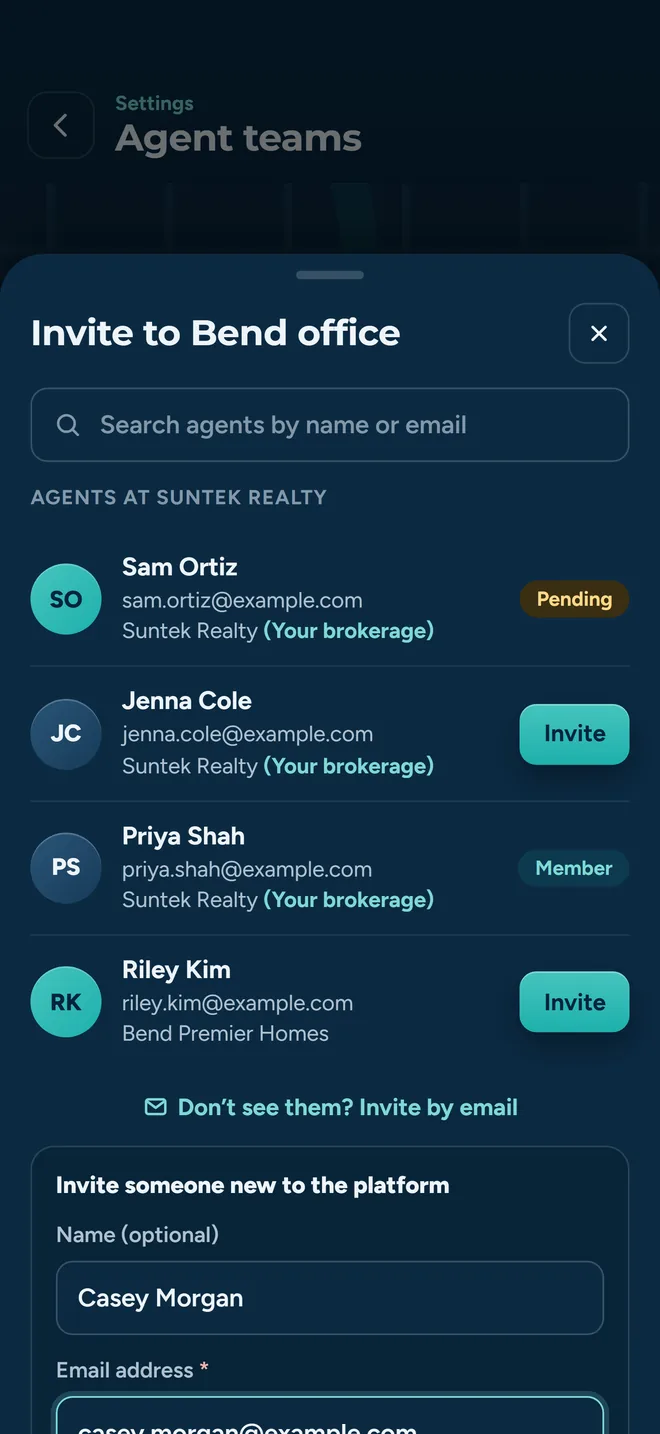
Two lists, one screen. The people already at your brokerage, and everybody else.
Rows that are already on the team show a flat Member badge and rows with an open invitation show PENDING, so there is no way to invite the same person twice by accident.
Choose Invite by Email, address required, name optional. They get an email headed with your name and the team name, and a Join the Team button. Sending the same address twice returns the invitation already out rather than mailing again.
Two things worth knowing: account creation still sits behind an invite code and the team email does not carry one, so send a code too if they are new. And the pre-loaded roster comes from the brokerage on your own profile, fill that in once in Settings, or the invite screen opens empty and you search by name.
An invitation is a row with a tick and a cross on it. There is nothing else to work out.
Someone who has no account yet is matched by email address after they sign up: the invitation is waiting for them the first time they open Agent Teams.
By email, and on the Agent Teams screen. There is no push notification and no badge anywhere else in the app for a team invitation, so if a teammate is not expecting one, tell them it is coming. An agent whose profile carries no email address gets the in-app row only; the app says as much when you send it.
Invitations do not expire and there is no state for a used-up link. They sit at pending until somebody accepts, declines, or the owner cancels.
Being on the team does not put you on the map. Going on duty does, and that is a switch you throw deliberately, every working day.
Location sharing is per team and per membership. Turn it off for the office team and on for the two-person weekend team, and your pin appears on the weekend team's map only.
None of this is continuous streaming, and calling it real-time would be a lie. It is a position that refreshes when you move, which is all anybody needs to answer who is nearest to a house.
A map with your team on it and a roster beside it. From 768px up the roster floats over the map in a panel down the left; narrower than that it sits in a panel pinned to the bottom of the map and scrolls inside itself.
Empty map with nobody out gets a plain 'No members on duty' badge rather than a blank grey rectangle you have to interpret.
Each on-duty teammate carries a number next to their name: feet under a mile, miles above it. That number is a great-circle distance between two points. It knows nothing about the river, the freeway on-ramp or the fact that the bridge is out.
Use it the way you would use a glance at a map: it tells you who is plausibly close, and then you call that person. It is deliberately different from the driving times the tour router uses when it orders a day of showings.
It is measured from your own last recorded position, so it stays blank until the app has recorded one for you. Go on duty once and the numbers appear.
While you are on duty a colored bar sits above the tab bar, and inside the tour screen with the rest of the controls. It has two buttons on it and it never scrolls away.
Pause is not disappearing. Your last known position stays on the map, labeled as paused with the time it was taken, so nobody wastes a phone call wondering whether the app has crashed.
Paused turns the banner amber and reads Location Paused. Teammates keep your pin with an amber ring and the line "Location paused · Last known 12m ago" under your name, and you are still on duty. Stopped takes the pin off the map, drops the distance next to your name and greys your roster row out.
A team owner can mark an on-duty member off duty from the roster. What that writes is the flag on their account. It does not reach into their phone and stop the tracking task. If their device is still running, its next position update puts them back on duty. It is useful for clearing somebody who left their phone on the passenger seat overnight; it is not a way to switch a colleague off.
The one moment the app asks about location sharing on your behalf is the moment you start a tour, because that is when it matters and when you are thinking about it anyway.
It decides who can see you during your tour. It does not assign the tour, reassign it, or tell anybody to take it over.
The prompt talks about this tour, but what it writes are the same per-team sharing switches that live on the Agent Teams screen, and they stay where you put them. Untick the office team on Saturday morning and the office team is still unticked on Tuesday until you change it back.
The prompt also only appears when you are currently off duty. Start a second tour while already on duty and nothing is asked; you keep whatever settings you already had.
Someone is sick on a Saturday with four confirmed showings on the books. You need their day, not a summary of it.
A red-tinted bar reading 'Viewing as [name]' sits at the top of the app header (dashboard, clients, tours, settings) with an exit button on it, so you cannot forget whose account you are working in.
Anyone on the team can open anyone else's view. It is not restricted to the owner, the teammate is not asked first, and it is not written to any activity log: the red banner is the only trace and it goes when you exit. What you do in their view lands on their records, not yours.
Entering it turns your own client view off first. Once you are inside, Settings collapses to one control (a View as Client toggle that shows their account from one of their clients' perspective), so you cannot edit their account or yours by accident. And it does not survive a reload: relaunch and you are back in your own account.
Treat adding somebody to a team as handing them your book of business for the day, because that is the size of it. Small trusted teams are the shape this fits.
Things that are cheaper to know now than to discover with eleven people already in the team.
The map earns its keep with the handful of agents who genuinely cover each other. Twenty pins is wallpaper. Two or three teams of the right people beat one team of everybody.
Nobody should have to guess whether their broker can see them on a Sunday. The switch is theirs, sharing is per team, and off duty is genuinely off. Agree the norm before the first invitation goes out, not after somebody notices a pin.
Both the foreground and the background permission have to be granted, and if either one is refused nothing starts at all. If a teammate has never appeared on the map, look at their location settings before you blame the app. You can create teams, invite, accept and read the map from a browser. What a browser cannot give you is a position that keeps updating with the tab closed.
When you save a buyer agreement template you can set it to My Team instead of Just Me, and it then shows in that team's members' template lists. The option stays greyed out until you are on a team, and it attaches to the first team on your list: there is no team picker. Deleting a team removes every membership and then the team itself. Members lose the shared map, but nobody loses tours, clients or listings, because none of those belong to the team.
The feature in full: what each role can do, what is shared, and how the same surfaces behave on phone versus browser.
If you are rolling this out to an office rather than a pair of agents, start here and talk to us before you create thirty teams.
What happens after the share-location prompt: the stop-by-stop screen, the on-duty banner inside it, and closing the day out.
Two agents, one team, both on duty for a single weekend. That is enough to find out whether a map answers the question faster than the group text does, and it takes about four minutes to build.
Already have an invite? Download for iPhone or get it on Google Play.
We use cookies to measure how this site is used and to see which ads bring agents here. Decline and we will remove them. Privacy policy.