The pre-tour checklist
What to have settled the night before, so tour day is execution rather than scrambling.
Walkthrough
The planning is done. Six houses, two buyers, a listing agent at each door. From here the app is a single screen you work down: one stop at a time, hands free enough to actually sell the house you are standing in.
This is what that screen does, control by control, and what it does not do. Read it once before your first Saturday and you will not be learning it in a driveway.
Listing search covers Southeast Florida and supported Oregon markets today.
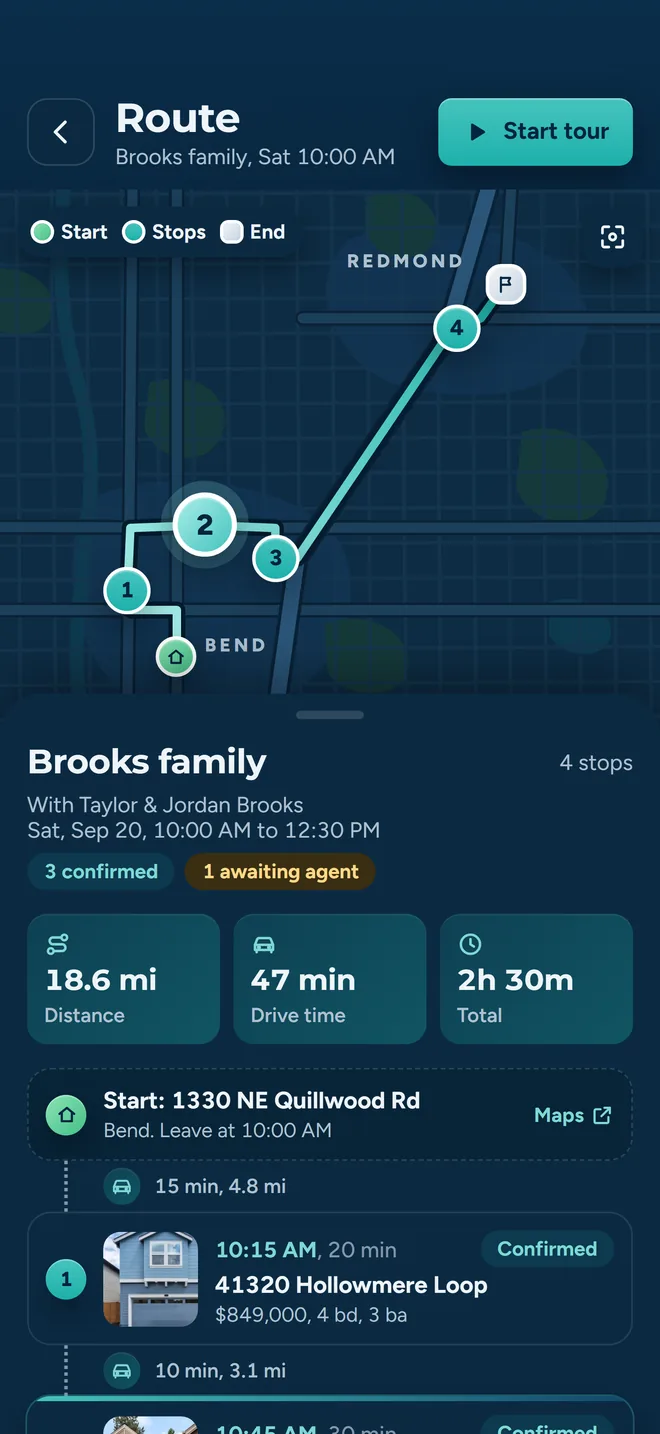
One button on the tour card. What happens next depends on whether the day is fully confirmed and whether you are on a team.
Your buyers get their own button on the same tour, and it reads Open tour: the stops in order, the times, the route map and where each showing stands. Starting the day is yours, and so are Skip, Pause and Stop.
Before the execution screen opens, the app offers to go on duty and asks which of your teams should see your location while the tour runs. Pick some, all or none. Starting without sharing is one tap.
To be exact about what that picker does: it controls who can see your location during your tour. It does not hand the tour to a teammate and nobody else takes it over.
Background location sharing is a phone feature. On iOS and Android the app asks for foreground and then background location permission and keeps sharing while you drive; the browser version falls back to occasional position updates only while the tab is open.
The screen shows one property at a time, because in the field you only have one property at a time.
Moving to the next stop emails that listing agent that you are on the way, and closing the one you are leaving emails that agent that the showing is done. You do not pull over to text anybody.
Showing instructions and private remarks from the MLS record (lockbox location, gate code, the dog in the back bedroom) appear on the stop itself, marked agent-only and hidden from the client view.
Both notices go by email to the address on the listing. A listing with no agent email on file gets neither, and the app does not tell you that. Worth a look before you set off.
Nobody wants to learn a new navigation app on the way to a showing. The app hands the address off and gets out of the way.
Your saved choice lives in Settings under Default Navigation App. Change it there when you switch camps, or clear it to get the picker back.
Two people in the car means two opinions about the same kitchen. One rating per property throws away the only thing you needed on Monday.
You leave with a per-buyer record of six houses instead of a memory of them, and each buyer's own note in their own words rather than your paraphrase.
Tap Next stop with a buyer unmarked and the app selects that buyer and asks for a verdict. Tap it again and it warns you that skipping feedback will thin out your report, then lets you skip it anyway.
That matters when the seller is standing in the hallway. Move on, catch up later: feedback on a stop can be edited after the fact from the tour.
There is a separate notes field for your own observations on the stop. It is kept apart from the buyers' notes and shows in its own column of the feedback report.
Days slip. The listing went pending overnight, the buyers want forty minutes in the third house, lunch runs long. None of that should force you to rebuild the tour.
A skipped stop stays visible with its reason attached, so the report explains the gap instead of leaving a hole in the day.
Pause is about your clock. It stops the timer on the current stop and flags the tour as paused on screen. It does not email anyone, does not move any confirmed showing time, and does not tell the listing agent at stop four that you are behind. If the day has slipped far enough that a confirmed time is no longer real, that is still a call worth making.
Closing the day out is a deliberate act, so a tour does not sit half-finished in your list all week.
A tour whose date has passed without being completed shows up flagged for review, with the reasons listed (declined showings, requests that never went out), so nothing quietly rots at the bottom of the list.
The point of capturing it in the driveway is that you never have to reconstruct it.
Two buyers who disagreed about the third house are visible as two cells that disagree, which is the conversation you actually need to have with them.
Each buyer is notified when feedback is recorded on a property they toured, and opens the tour to see the stops, the times and where each showing stands.
Each one gets an email when you move on to their property and another when that showing is done. The first stop is where you start, so that agent gets only the second. No account, no app, no login.
The completed tour keeps its stops, its times, its skips and every buyer's verdict, ready to open next to their favorites.
Small things that are easier to know in advance than to discover between houses.
Six stops, a maps app and location sharing is a real draw on a battery. The execution screen is designed for a phone in your hand all afternoon, and it will use the phone accordingly.
Set the default in Settings before you leave rather than answering a picker in the first driveway. It takes ten seconds at your desk.
The app will not let you skip a stop without a reason. Write the real one: went pending, seller not ready, ran out of daylight. It is what the report shows next to the gap later.
Two thumbs and a line of text per buyer takes about fifteen seconds at the car door and is worth more than an hour of recall that evening. You can skip it and come back, but the version captured on the spot is the accurate one.
iOS, Android and the web app share one account. Build the tour at your desk on Thursday, run it from your phone on Saturday. Background location sharing and the maps handoff are at their best on the phone.
A buyer who opens the tour on their own phone sees the stops in order, the times, the route and where each showing stands. The live stop-by-stop screen is yours, and so is every control that changes the day: skip, pause, stop, complete.
What to have settled the night before, so tour day is execution rather than scrambling.
How the order of the day gets built, and why a confirmed showing never gets moved out from under you.
Everything from an empty tour to a finished one, with this day as the last few steps.
Take the tour you were going to run anyway (the same stops, the same buyers, the same listing agents) and work it from this screen instead of a notebook. One afternoon tells you more than any demo.
Already set up? Download for iPhone or get it on Google Play.
We use cookies to measure how this site is used and to see which ads bring agents here. Decline and we will remove them. Privacy policy.