Walkthrough
Send showing requests and get them confirmed
Building the route is the easy half. The half that eats your Thursday evening is six listing agents, six voicemails, and a schedule you cannot commit to until the last one calls back.
This is that half, step by step: what goes out, what the listing agent sees, the four answers they can give, and exactly what each answer does to your tour.
Available in supported South Florida and Central/Southern Oregon markets. Check your market and MLS before getting started.
Step 1Finish the tour before you send anything
A showing request carries one specific arrival time. Send it while you are still dragging stops around and you have promised a listing agent a time you are about to change.
- What you do
- Settle the order, the arrival times and the visit lengths, then apply the schedule. Only then send.
- What the app does
- Blocks the send while there are unapplied schedule edits sitting in the tour view, with a prompt that says to apply your changes so the listing agent gets the updated time, then send. The apply itself is one write across every affected stop, not a stop-by-stop save.
The time in the email and the time on your route come from the same saved record. There is no version of this where the listing agent is confirming a slot you already moved.
Getting the route itself right is the previous walkthrough: plan and run a tour.
Step 2Send the requests
One button, every stop that still needs a request. The app opens a separate thread per property rather than one message about the whole tour, because each listing agent only cares about their own house and their own slot.
- What you do
- Press Send All to Listing Agents. Or send a single stop on its own when you have added a property late or changed one time.
- What the app does
- Leaves alone the stops that do not need contacting: one already confirmed, one whose request already went out for that same time, and a client's own request still waiting on your approval. Every other stop keeps a single pending request record with its own link, and the listing agent is reached on every channel it has contact details for: email, text message, and an in-app notification if that agent already has an About Time Tours account under the same address.
You get a count back (how many emails, how many texts, out of how many properties), how many were skipped because the listing carried no agent email or phone, and how many were left alone as already confirmed, already requested, or held for your approval. The no-contact ones are what you still have to call.
What actually goes out per stop
- An email to the listing agent's address from the MLS record, when there is one.
- A text message when the listing agent's phone number can be read as a real US number. It is deliberately short, with the link on its own line so the phone makes it tappable.
- A push notification when the listing agent's email matches an existing About Time Tours account. Most do not, which is why the email and the text carry the whole request.
- Nothing at all for a stop with neither an email nor a phone on the listing. It is counted as skipped and shown to you, not silently dropped.
Times are written in the listing's own time zone and labeled with it: 2:00 PM EDT for a Miami listing, 2:00 PM PDT for a Bend one. The showing happens at the property, so that is the clock both of you read.
Step 3What the listing agent gets
A listing agent who has never heard of About Time Tours has to be able to answer in ten seconds without downloading anything. That constraint shapes the whole message.
- What you do
- Nothing. This is the part you stop doing.
- What the app does
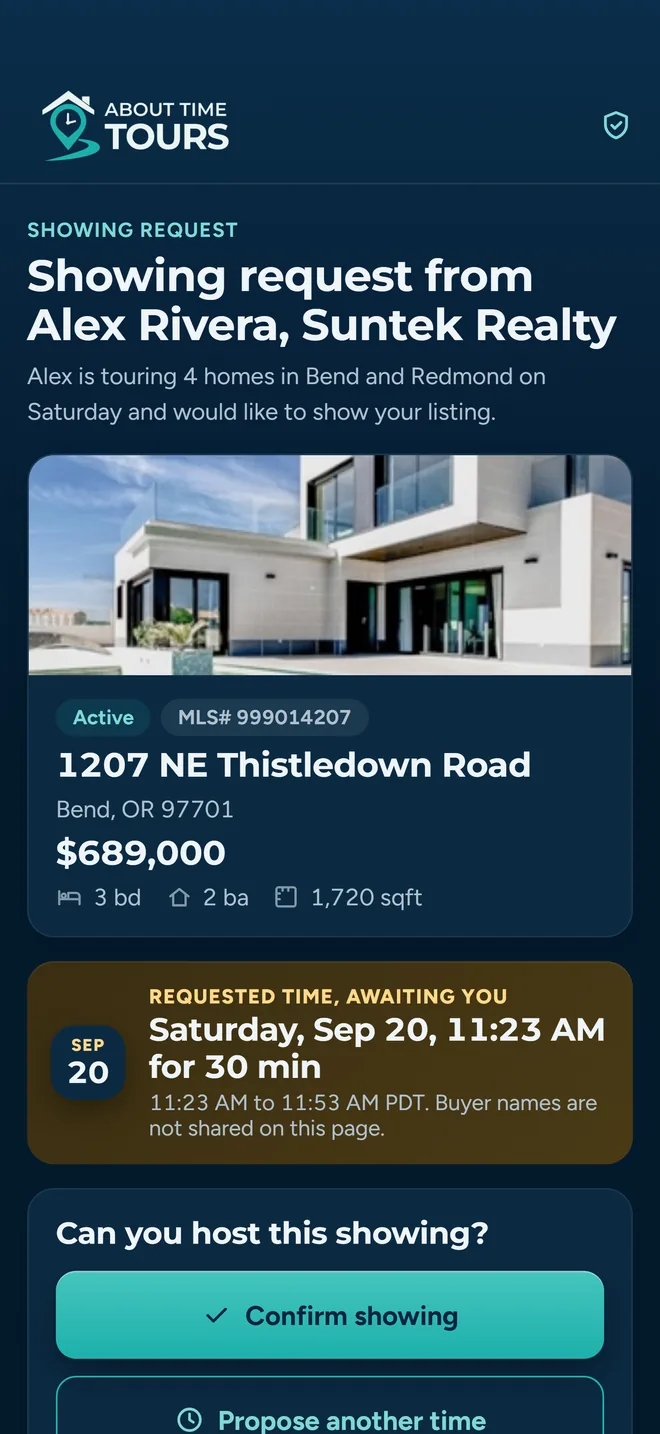
- Sends a message that leads with the property and the requested time, says who is asking and how to reach them directly, and puts a Confirm this showing button under it. Below that: can't make it, decline or propose another time.
The link opens a web page. No account, no sign-in, no app install. That is the single biggest reason a request gets answered the same day instead of sitting in a voicemail box.
In the email itself
- The property
- Photo, street address, city and ZIP, the list price, the beds, baths and square footage, and the MLS number, so they can confirm it is their listing without opening anything else.
- The requested time
- The date and the time range, set apart in its own block. The range is the arrival time plus however long you planned to spend, defaulting to 30 minutes.
- Who is asking
- Your name, your brokerage, your phone and your email, with the phone and email as live links. A listing agent who would rather just call you can, immediately.
- One button
- Confirm this showing. Underneath it, a second link for declining or proposing another time. Both open the same page.
Step 4The four answers
This is the part worth reading closely, because two of these look identical on the listing agent's screen and do completely different things to your tour.
- What you do
- Wait. Every one of these lands as a notification on your phone.
- What the app does
- Reads what the listing agent actually submitted, not which button they pressed. A decline that carries a time or a note is treated as a negotiation. A decline that carries nothing is treated as an answer.
Confirm
The stop is booked
The stop goes to confirmed and any previous decline flag on it is cleared. The listing agent is offered an Add to Calendar button on the spot.
From here the stop is pinned in your route. The optimizer will not move it, and if you deliberately unlock it, the app tells you first that a time change means re-confirming.
Propose a different time
Counter-proposal: the stop needs rescheduling
They press decline, pick a preferred time, and submit. Because a time came with it, this is not recorded as a refusal. The confirmation goes to counter-proposed and the stop moves to reschedule requested, carrying the time they suggested.
Their own screen confirms it back to them: an alternative time was sent, and your agent has been notified and can adjust the tour schedule.
Leave a note
Also a counter-proposal
The same sheet has a free-text field, labeled as context for the buyer's agent and marked optional, with a placeholder along the lines of: I can't do 1:00, but 1:15 works, I have another showing at 1:30.
A note alone is enough. Submit a decline with a note and no time and it still becomes a counter-proposal: the stop goes to reschedule requested, not declined. The note is what the app treats as the signal that the door is still open.
Decline outright
Terminal: the one answer that closes the link
There is a separate link on the sheet: decline without proposing a time. That path sends a bare decline. No time, no note, no reason. The confirmation is recorded as declined and the stop is marked declined.
A bare decline is the one answer that cannot be revised through that link. The link stops accepting responses for that stop. It is not the end of the property, though: the declined stop carries a Reschedule button, and rescheduling sends a fresh request on a new link.
The exact rule
A decline that arrives with a proposed time, a note, or a written reason is stored as a counter-proposal and sends the stop to reschedule requested. A decline that arrives with none of those three is stored as a decline and is final. Nothing else about the submission changes the outcome.
One consequence worth knowing: the link is not one-time and does not expire. A listing agent who confirmed on Wednesday and then double-booked on Friday can open the same link and send you a counter-proposal instead. The stop drops back to needing a reschedule and you find out from a notification rather than from an empty driveway.
Step 5What comes back to you
Answers arrive one at a time over hours, usually while you are doing something else. The tour view is built to be read at a glance between other things.
- What you do
- Open the tour. Every stop carries its own status, and the counts across the top tell you whether the day is settled.
- What the app does
- Pushes a notification the moment an answer lands: the showing was confirmed, an alternative time was proposed with the suggested time against the old one, scheduling notes came in, or the showing was declined.
A stop that got a counter-proposal shows the listing agent's suggested time and their note inline on the stop row. You are not opening a thread to find out what they said.
The seven stop statuses
- Not sent
- No request has gone out for this stop yet.
- Pending
- The request went out and nothing has come back.
- Opened
- The tracking pixel in the email loaded. Read it as a positive signal only. An email that never registers as opened may simply have images switched off, so this never proves the opposite.
- Contacted
- You handled this one yourself (a call, a text or an email from the stop's own contact buttons) and the app logged it.
- Confirmed
- The listing agent confirmed the time. The stop is pinned.
- Needs reschedule
- A counter-proposal came in. Their suggested time and note sit on the row, with the buttons to act on them.
- Declined
- A bare decline. Nothing further is coming through the link.
Above the list, a running count: how many confirmed, how many still pending, how many never sent, how many declined. The tour itself reads as confirmed only once every stop on it is confirmed.
More on how notifications reach you across phone, tablet and browser: notifications.
Step 6Act on a suggested time
A counter-proposal is only useful if accepting it is one press. Two presses and a save step is how stops end up displaying a time nobody agreed to.
- What you do
- On the stop row, press Accept followed by the time they suggested. Or press Counter / Reschedule, pick a time that works for your route, and send it back.
- What the app does
- Accepting moves the stop to their time, marks it confirmed and closes out the counter-proposal in a single write, then emails and texts the listing agent that you took their time, because they never see your screen and would otherwise have no idea. Countering resets the stop to pending, clears the sent flag and fires a fresh request at the new time.
Accepting a time is not a note-to-self. The listing agent gets a Showing Confirmed message naming the address, so the loop actually closes on their end too.
Two things that stop this going wrong
- Only the latest answer is live. A stop accumulates records over its life: a request, a proposal, a manual call, a final confirm. The app reads them newest first, so an old counter-proposal cannot resurface an Accept button for a time everyone has moved past.
- A counter of your own goes out as a real request. It is not a message. The stop returns to pending and the listing agent gets the same request they got the first time, at the new time, with the same four answers available.
Step 7When the schedule shifts under a confirmed stop
One agent moves a 1:00 to 1:45 and every stop after it slides. This is where confirmations quietly go stale, so the app makes moving a confirmed time loud on purpose.
- What you do
- Apply the new schedule, then choose whether to re-send to the agents whose time changed.
- What the app does
- Counts the stops whose time actually moved and that a listing agent has already been engaged on, then asks before applying. You get three choices: cancel, apply without re-sending, or apply and re-send the updated request to exactly those agents.
The prompt tells you how many of the moved stops were already confirmed and will need to confirm again. That number is the real cost of the reshuffle, shown before you commit to it.
Three ways a confirmation gets reset
- You move the tour's own start time
- Change the tour start by more than a minute and every confirmed stop on it drops back to pending, with a message telling you how many were reset and that they need re-confirming. The whole day shifted; none of those agreements survive it.
- You unlock a confirmed stop and its time moves
- Confirmed stops are locked in the route. Unlocking one warns you first that re-routing it means re-confirming. If the time then actually changes by more than a minute, the stop returns to pending and its sent flag clears, so it is queued for a fresh request rather than sitting there looking settled.
- You apply a suggested schedule that moves one
- Same rule, applied in bulk. Any confirmed stop the new schedule needs to move comes back as pending, and the re-send prompt covers every affected agent in one go.
A confirmed stop that does not move keeps its confirmation. The reset is triggered by the time changing, not by you touching the tour.
Before you send your first batch
Some listings have no contact
Requests go to the listing agent details carried on the listing record. Where a listing has neither an email nor a usable phone number, the stop is skipped and counted in the result. Those are the calls you still make.
The listing agent needs nothing
No account, no download, no password. The link in the email and the text opens a page they can answer on immediately, which is the whole point.
The link stays open
It is not single-use and it does not expire on a clock. A confirmed showing can still be walked back to a counter-proposal later. Four things do close a link: a bare decline, a new request for that stop (which issues a fresh one), removing the stop, and cancelling or deleting the tour.
Send one stop or all of them
Adding a property the night before does not mean re-sending to everyone. A single stop can be sent, or re-sent at a new time, on its own.
Coverage is Central/Southern Oregon and South Florida
Listing search runs on two feeds: the Oregon Data Share feed, serving Central and Southern Oregon (Bend, Medford, Klamath Falls), plus South Florida through the MIAMI Association of REALTORS®.
What it costs
$20 per agent per month after a 30-day free trial; $5 per agent per month for organizations of 51 to 1,000 agents; larger by agreement. Start with guided setup and we will walk you through it.
Send six requests instead of making six calls
Take one tour you have already built, send the requests, and see how many come back answered before you would have finished the second voicemail.
Rolling this out across a brokerage? Talk to us about a team rollout.