Walkthrough
Search the MLS and build a shortlist
Most buyer shortlists live in three places at once: a portal's saved search, a thread of texted links, and your own memory of which house the wife liked. This is the same job done once, in seven steps, ending with a list you can hand to the client and pull straight into a tour.
Read it before your first search and you will know what each control does, what the app decides on your behalf, and what the underlying data actually is.
Available in supported South Florida and Central/Southern Oregon markets. Check your market and MLS before getting started.
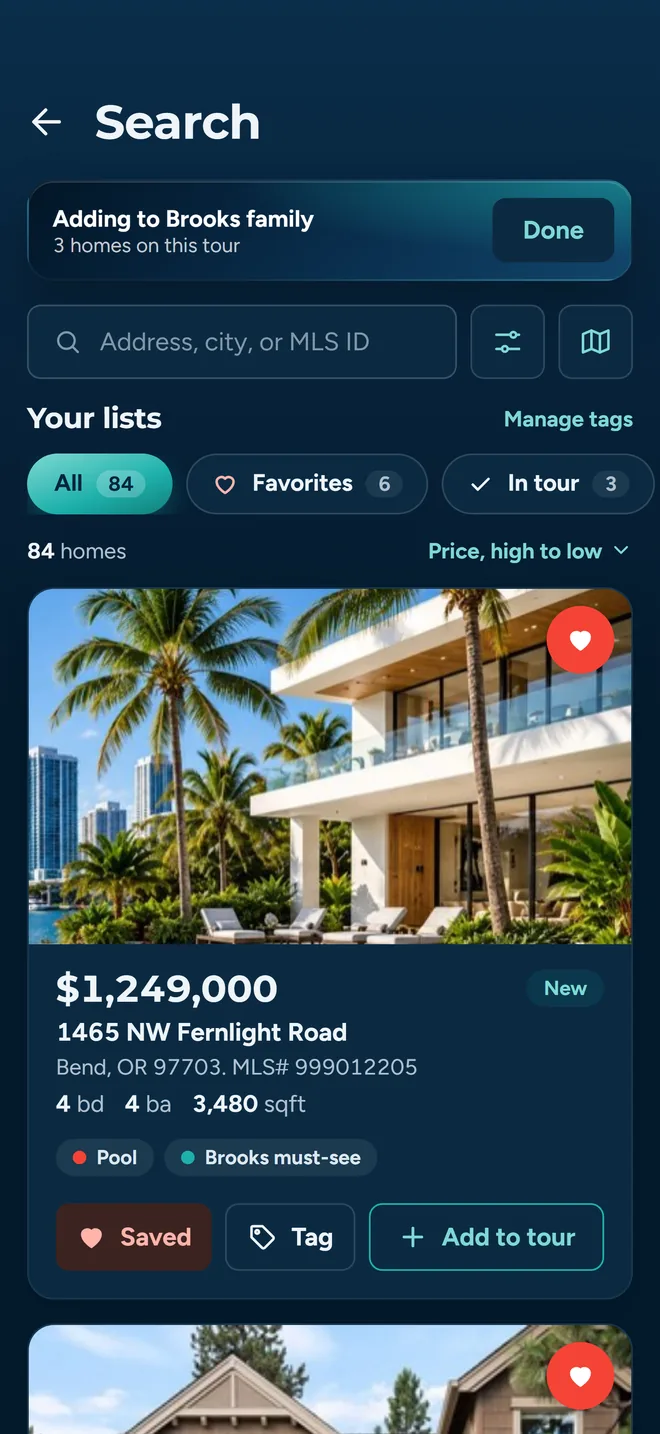
Step 1Search the way you actually type
Address, city, state or MLS ID, including the messy entries that usually return nothing.
- What you do
- Open the Search tab and type. Tap the empty field instead and you get your recent searches, newest first, plus a one-tap “use my current location”. Recent searches are kept on the device and you can delete them one at a time or clear the lot.
- What the app does
- A single-word city or a bare ZIP goes straight through. Anything with a comma, a street suffix, a trailing state abbreviation, or simply more than one word is geocoded first, which is what makes “la pine” and “cottage grove” land on the right city instead of returning nothing. Type a full street address and the app centers a five-mile radius on it, switches the sort to distance, and lifts the exact address match to the top of the list even when it falls outside that radius.
The queries that fail are the ones you actually type: two-word town names and half-remembered street addresses. Both are handled before the query runs, so you are not left retyping the same search in different casings.
Step 2Apply the filters
One drawer, everything in it, and a count on the button so you always know how much is currently narrowing your results.
- What you do
- Tap the filter icon beside the search bar. Drag the price range or type the numbers: it accepts “200K” and “1M”. Set minimum and maximum beds, baths, square footage, lot size and year built. Pick home types. Add a keyword. Decide whether pending listings belong in the results, then Apply.
- What the app does
- Shows a badge with the number of filters currently active, and re-runs the search the moment you apply. Keyword searches the listing description text, so “shop”, “waterfront” or “hot tub” works even though no MLS field carries it. Home types are translated into the feed’s own vocabulary on the way out: Condo also picks up tenancy-in-common, Multi Family covers duplex, triplex and quadruplex, and Manufactured covers on-land, in-park and leased-land.
You never have to learn the MLS's terms to get the MLS's results. And pending listings are included by default on purpose: an accepted offer does not always close, and plenty of those sellers will still take a showing.
Two things worth doing before you leave this screen
- Set the sort.
- The sort pill sits above the results. Unlike your query and your filters, the sort is remembered across app launches; it is treated as a preference, not part of a particular search. Opening the app fresh gives you a clean search box, not yesterday’s query.
- Save the search.
- The drawer’s footer has Clear, Save and Apply. Save names the current filter set, including the area you drew or the radius you set, and files it under Searches on your Favorites tab. Open it again later, change something, and Save updates the same one rather than making a second copy.
The sort options, in full
- Distance from search
- Nearest to whatever you searched. Needs a center point, so it appears once a radius or an address search is in play.
- Price: High to Low
- The default.
- Price: Low to High
- The other direction.
- Square Feet: Largest
- Biggest floor plan first.
- Bedrooms: Most
- Useful when the buyer's constraint is a bedroom count, not a budget.
- Bathrooms: Most
- Same idea, other room.
- Lot Size: Largest
- Acreage first.
- Date Listed: Newest
- What came on since you last looked.
Step 3Draw the area on the map
Buyers rarely describe where they want to live in ZIP codes. They say 'walkable to the school', or 'this side of the river'. Three tools cover the gap between how they talk and what the feed understands.
- What you do
- For a named area, use the boundary filter in the drawer: ZIP code, county, city or school. For a distance, use the radius: center it on your current location or on any place you search for, then pick 1, 5, 10, 25 or 50 miles. For a shape that has no name, switch to map view and tap the polygon button. Tap corner to corner and drag the points to adjust, or trace it freehand, close the shape and Apply.
- What the app does
- Smooths the traced path down to a workable polygon, filters the results to listings inside it, and re-runs the search on its own. Map view draws price pins that are color-coded for properties you have already favorited and properties already on a tour, and asks you to zoom in when the viewport is too wide to load pins usefully. Reopen the draw tool and your existing shape comes back with every vertex draggable, so adjusting a boundary is not the same as redrawing it.
A school attendance boundary, a ridge line, or 'the flat part of town' does not map onto a ZIP. Drawing it once and saving the search means you never have to re-explain the area to the software.
Step 4Open a listing
The detail screen is where you decide whether a property earns a slot in the car, and where you find out whether it will be straightforward to book.
- What you do
- Tap a card. Work through the photos, read the description, then check the panel below it: property type, county, year built, lot size, and when this record was last updated. The listing agent’s name, email, phone and license number are on the same screen.
- What the app does
- Renders the originating MLS’s attribution line and logo on both the card and the detail view, and watermarks the photos. Saving is a heart on the photo itself. Two sticky buttons sit at the bottom of the screen the whole time you are scrolling: Tag, and Add to tour.
The listing agent's email is the address a showing request goes to later. Noticing here that a listing has no agent contact on file is far cheaper than noticing it after you have built a six-stop Saturday around it.
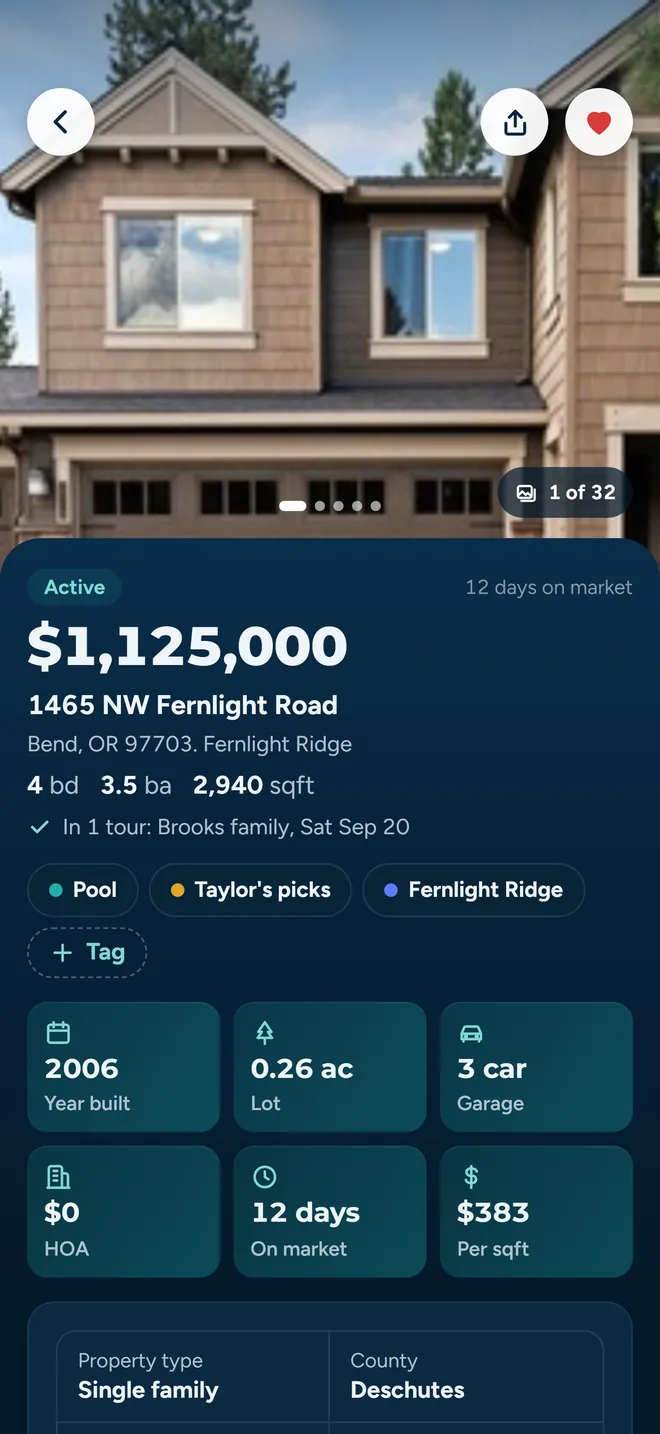
Step 5Save it to favorites
One tap. This is the pile the shortlist gets built out of, and it is the same pile the tour builder reads from later.
- What you do
- Tap the heart: on the card in the results, or on the photo in the detail view (a Save button on desktop). It fills in and reads Saved once it is in. On the detail view, tapping a filled heart opens the tag manager instead of un-saving, so you cannot lose a favorite with a stray tap there.
- What the app does
- Adds the property to your favorites and puts a small badge on the Tag button showing how many tags it currently carries. Search grows a Favorites pill with a live count, and tapping it shows your saved properties. With no query applied, that is all of them, which is what makes the shortlist reachable from inside a tour later. When you are previewing a client’s account, favorites are read and written against theirs, not yours.
Favorites are the join between browsing and doing. Every downstream step (tagging, sharing, and picking stops for a tour) reads from this one list.
One thing it does not do
There is no per-property notes field. Nowhere in the app can you type “steep driveway, buyer’s mother uses a walker” against a saved listing. Tags are the only annotation, and tour feedback (captured per buyer, per stop, during the tour itself) is where written notes actually live.
Step 6Organize it into a list
A pile of forty favorites is not a shortlist. Tags turn one list into as many shortlists as the buyer needs, without duplicating anything.
- What you do
- Tap the badge on a saved property to open the tag manager. Toggle existing tags on or off, or create a new one on the spot with a name and a color. On the Favorites tab the All favorites card is at the top, with your tags under it (behind a Tags tab on a phone), each one a card carrying a few property thumbnails and a homes count. Manage turns those cards into share, recolor and delete controls.
- What the app does
- Stores tags on the favorite itself, so one property can sit in several collections at once and every list stays a view rather than a copy. Counts stay live as you tag. The filter drawer picks up your tags too, so you can pull a collection up on the search screen and keep browsing beside it. Deleting a tag strips it from every property that had it and cannot be undone; the properties stay favorited.
A buyer with a "must see" list and an "only if the first four disappoint" list is a normal Tuesday. Tagging beats maintaining two lists that drift apart the moment one property moves between them.
Step 7Share it with the client
Two ways out, for two kinds of recipient: the buyer who is already in the app, and the one who is not.
- What you do
- Open a collection (or All Favorites) and tap Share to send it inside the app. Search your clients by name, email or phone and pick one. There is a second tab for agents, with a browse-by-home-office shortcut when you are sending a list to a colleague. Tap Link instead and you get your phone’s normal share sheet.
- What the app does
- An in-app share is scoped to the collection you shared from, so the recipient sees that tag’s properties and nothing else. It lands under Shared on their Favorites tab. The card shows how many people a list is shared with; open that and you can revoke any share individually. The Link route writes out one line per property (address, price and a link) and each link opens that listing’s public page: photos, price, stats and MLS attribution, no account required. If the recipient has the app installed, the link opens in it instead.
Buyers who have not signed up yet still get something they can open on the drive home. Buyers who have get the list where their own favorites, tours and feedback already live, and you can take it back later without asking them to delete anything.
What you are actually searching
Worth being precise about, because it changes how you use the results.
A cache, refreshed every 15 minutes
Searches run against a listing store refreshed on a fifteen-minute cycle, not a live MLS query. Fine for building a tour; confirm status with the listing agent before you promise a buyer anything.
Two regions, two feeds
South Florida through the MIAMI Association of REALTORS®, plus Central and Southern Oregon (Bend, Medford, Klamath Falls) through the Oregon Data Share feed. Outside that, join the waitlist and we will tell you when your market is on.
Attribution travels with the listing
Every card and detail view carries the originating MLS’s attribution line and logo, and photos are watermarked. The public page a share link opens carries the same block.
More on how the pipeline is put together on the MLS search feature page, and the current market list on the coverage page.
Turning the shortlist into a Saturday
The shortlist is not the deliverable. The tour is. Starting one reopens this same search screen in multi-select mode, with the Favorites pill at the top.
Tap it to pull your whole shortlist, then pick the six you want. Each arrives with its coordinates and its listing agent’s contact details, so the app can route the drive and send the showing requests without a second lookup.
Related reading
- MLS search
Filters, boundaries and how the listing pipeline is built.
- Clients and favorites
Shared lists, tags and what the buyer sees on their side.
- Invite and manage clients
Getting the buyer into the app so a share has somewhere to land.
- Plan and run a tour
The nine steps from an empty tour to per-buyer feedback.
- Scheduling a multi-stop day
The practical version, without the software.
Try it on a real buyer
Tag ten properties, share the collection, and see whether the buyer answers a list faster than a thread of links.